Guest Blog: Sheryl Kasper, Photo Fixing
Today’s guest blog is from Sheryl Kasper, who’s sharing her technique for turning a not-so-great flower photograph into a beautiful, marketable shot by using digital manipulation techniques in Photoshop. This technique will work for virtually any object, by the way. Thanks, Sher!
_________________________
Digital Magic:
How to Make the “Ho Hum” Disappear
From Your Photographs
Do you ever find you have a nice image, but there are a lot of distracting elements in the background? I have!
When I started getting into photography, I took a lot of photographs of flowers out in the garden. I found a lot of my flower images taken in the garden had so many distracting elements in the background. Though my subject flower was very pretty, I was always disappointed by the background.
I soon realized my passion for flower photography was better suited in a controlled setting. By that I mean table top, or still life, photography where I could set up my own background and add my own lighting. I did not have to contend with weeds, dead flowers or the wind blowing the flower around making the flower difficult to photograph.
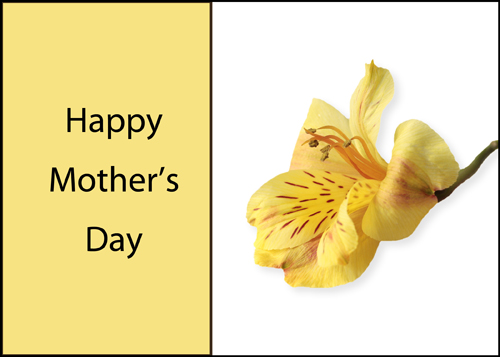
So with that said, I have written a Squidoo Lens that may help revamp some of your ho-hum images. Though I used a flower image as an example, I feel these directions may help with any other type of photograph where the subject is well lit and the background is bad. It is called, “Turn a Plain Image into a Marketable Design”, and includes Photoshop tutorials on how to:
- Isolate the flower out of the photograph,
- How to add a new background,
- How to add a drop shadow under the flower,
- How to size the flower,
- How to add a colored rectangle design element,
- How to put an outline around the rectangle,
- How to add text.
I made the final design very simple so that it would be easier to teach how to use these Photoshop features. Thank you and I hope you find it useful.
Turn a Plain Image Into a Marketable Design


 GCU Community
A good share. Very well explained and demonstrated especially for people newer to P.S. Thanks Sheryl~
Thank you LJ. I appreciate your kind comments. 🙂
Very nice Sheryl,well explained for PS new users. A lot of work on your part. No reason for anybody not to know these methods anymore. Thanks
Hi Michelle, it took me all day yesterday to write it up. I had some major eye strain from it… LOL. I sure hope I didn’t miss a step. Thanks for checking it out and for your kind comments. 🙂
Not photographer but I bet this could save a traditional art piece as well. I’ll have o give it a try. Very good instructions!
I hope it helps with your art pieces. Thank You.
Nice addition to the info being offered. Thank you for taking the time to create and share!
Doreen
Thank you Doreen, it was my pleasure to help.
good job…very helpful, THANKS http://judithchengart.com/
Thank you very much Judith.