Dash of Inspiration: Create a Photo Studio
A Dash of Inspiration, A Cup of Creativity by Doreen  Just wanted to share a couple of quick finds today. Leaving my big photo studio behind when I downsized a few years ago occasionally left me ‘wanting’ when I had an idea for a photo shoot. I ended up choosing a folding light tent (box) and lights which I can put on top of my drawing table to set up small shoots. For shooting people, I always opt for bouncing natural light and creating backdrops.
So, when I saw these great tips on creating temporary ‘studios’ at home, I thought the photographers out there might find these links useful.
Make-shift Photography Studio by Jill Wellington
5 Tips for Flawless Food Photography Lighting by Foodess.com
Also, back in 2012, we did a great blog post on Mouth Watering Food Photography you might find useful.
10 Tips to Get Started with Still Life Photography by Simon Bray
5 Tips for Photography Using Natural Light Indoors by Karthika Gupta
……………………………………………………………………………………
And – be sure to check out our June Dash of Inspiration Design Challenge!
…………………………………………………………………………………….
So until next week … Learn … Create … Inspire!
Share this:

Wanted: New Cards – Congratulations, New Job

Every week, we showcase a GCU category that has few or no cards. We’d like you to create at least one card for this category using the Stock Cards function (Bigstock) or your own graphic designs.
Remember, when you’re submitting your new card, add a little note about the intended category in your Notes to Reviewers – cards submitted for underused categories are much more likely to be approved provided they follow the Submission Guidelines. Be inventive, be clever, be creative. Good luck!
Today’s category with 2 cards is:
Congratulations – New Job

Share this:

Tips and Tricks: 15 Font Families for $15

Design Cuts is having an amazing sale – get 15 professional font families for $15! Yep, they are OK for commercial use. Some of these fonts are super trendy and would cost a mint if you bought them separate. We’ve bought from Design Cuts before and they are reputable and reliable. You do need to sign up to make a purchase, but signing up is free, you get access to freebies and special offers. See below for examples and have fun!

Share this:

Tips and Tricks: Marketing on Pinterest

As some artists are already aware, Pinterest is a great tool for marketing your work, but only if you use it right. Social Media Examiner has a great article, 7 Pinterest Marketing Tips to Improve Your Visibility that offers good advice for newcomers and experienced Pinterest users. Check it out! And to learn how to make affiliate earnings on your links, here’s an article we ran here earlier, Getting GCU Referral Links on Pinterest.
Share this:

Dash of Inspiration: FREEBIE Week
A Dash of Inspiration, A Cup of Creativity by Doreen Passing on some fun finds this week which hopefully you’ll find useful in your designs. As always, please be sure to read and follow each contributor’s TOU (Terms of Use).
7 Natural Paper Textures from Graphic Burger
63 Wedding Shapes from All Silhouettes.com
Fun Glasses, Lashes And Staches Shapes from Zooll.com
Here are a couple of fonts which are simple, but very useful:
Rounded Elegance by Douglas Charles Cunha
The Bold Font by Pindarots 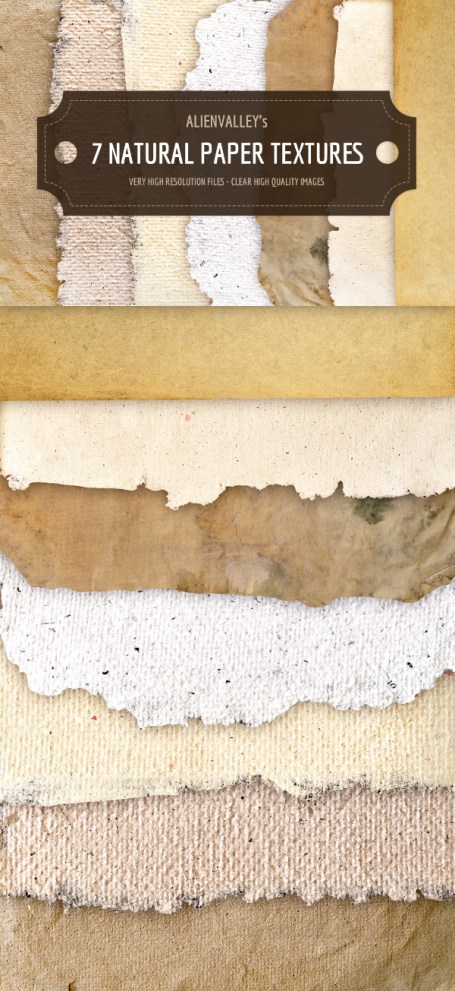
……………………………………………………………………………………
And – be sure to check out our June Dash of Inspiration Design Challenge!
…………………………………………………………………………………….
So until next week … Learn … Create … Inspire!
Share this:

Wanted: New Cards – Rosh Hashanah, For Kids
Every Friday from now on, we’ll be showcasing a GCU category that has few or no cards. We’d like you to create at least one card for this category using the Stock Cards function (Bigstock) or your own graphic designs.
Remember, when you’re submitting your new card, add a little note about the intended category in your Notes to Reviewers – cards submitted for underused categories are much more likely to be approved provided they follow the Submission Guidelines. Be inventive, be clever, be creative. Good luck!
Today’s categories with (2) cards are:
Holidays – Rosh Hashanah – For Kids

Share this:

Tips and Tricks: Free Illustrator Brushes

Spoon Graphics has a set of free (for personal and commercial use) stipple shading brushes for Adobe Illustrator. I know some of our artists have started to work in this graphics editing program and this is a handy set of brushes to have. As always, double check the TOU/licensing – creators sometimes change their terms. Check it out and have fun!
Share this:

Font Frenzy: Niconne

Niconne is a pretty unconnected script font free for commercial use. It’s got a bit of a flourish and a rounded feel, making it a nicely feminine font. The capitals would work for drop caps, too, and the font pairs nicely with a plainer sans serif font. I can think of a lot of uses for this font, can you? See example below and have fun!

Share this:

Tips and Tricks: Single Image, Double Use
There are a lot more than the usual big commercial holidays out there, like Sandwich Day or Office Curmudgeon Day or other goofy excuses to celebrate. GCU has a whole bunch of sub-categories for these cards listed under Holidays > National/International Days. Now I know a lot of artists feel these sub-categories are a waste of their time. You might not necessarily sell Donut Day cards in bulk, however that doesn’t mean a clever artist can’t kill two birds with one stone.
Here’s a card we made for National Taco Day:

Then a little later, we got an idea, took the same taco, added a birthday hat, created a different background and text, and made a series of age specific birthday cards like the example below:

You see how that one illustration with a few tweaks and changes, goes from one sub-category to another? This is how you do it, folks – be smart and see if you can make your work do double duty.
Have fun!
Share this:

Dash of Inspiration: June Design Challenge
And the winners are …
1st Place: Barbara Schreiber with PID1383360

1st Place Winner by Barbara Schreiber – June 2015
2nd Place: Liz Van Steenburgh with PID 1383634

2nd Place Winner Liz Van Steenburgh – June 2015
……………………………………………………………….
Congratulations Julia and Audrey, our winners for May’s Challenge!
……………………………………………………………….
This month’s challenge will stretch your ability to visually create matching imagery for something you hear or read. We’re working with Idioms this month. What’s an Idiom? Here’s an example: A Chip On Your Shoulder when it’s said to us, we understand it to mean: Being upset for something that happened in the past. Idioms have no copyright attached, they simply are common words used in phrases which were created and understood by a culture – in this case English – where the meaning of the phrase differs from the exclusive meaning of the individual words in the idiom. GOOD LUCK and HAVE FUN!
…………………………………………………………………………
June Design Challenge Theme: Bring an idiom to life.
Requirements: Choose one Idiom from the offered list and create imagery which visually represents the idiom. Matching it well to a category and occasion. You must use the Idiom in your card front text OR inside verse as part of your message. Full Idiom List – Choose ONE
………………………………………………………………
Entry Deadline: June 29th, 2015
……………………………………………………………….
How to Enter: Post the PID (card number) and the URL (public storefront link – please WAIT for the card to be available in the public marketplace, please DO NOT post a link to your Manage Cards area) as a post in the challenge blog. We’ll forward your entry to the jury.
……………………………………………………………….
Category: Any Category / Any Occasion
……………………………………………………………….
Rules:
- Submission must meet GCU’s Submission Guidelines and be Approved through the usual Review Cycle – Fast Track your submission with this in the Notes to Reviewer: June Design Challenge Submission here is the link to the blog post: (include THIS blog post URL)
- Only ONE card per artist per challenge.
- Submissions must be NEW, no existing designs.
- Your entry must meet the Challenge Requirements and Theme or it will not be included in the challenge.
- Stock Card Creations entries will not be accepted.
……………………………………………………………………
Judging: Entries will be judged by the GCU Challenge Jury with results posting on the Community Blog – due to the 4th of July holiday – between July 2nd and July 8th. The jury will judge the entries on the following criteria:
- How well the card meets the Challenge Requirements and Theme.
- How well the card speaks to the Category the artist chooses for the card submission.
- Creativity, Execution and Marketability.
……………………………………………………………………
Winners: 1st Place:
- The winning designer’s card and store will be featured on the GCU Public Blog – the blog which customers view and follow.
- As well as featured on the GCU Public Facebook Page – nearly 17,000 followers, now THAT’S exposure!
- The winning card will be Design of the Day following the announcement of the winners (within 48-hours).
EXCEPTION: Horizontal (landscape) cards can not be DOD due to GCU Home Page space restrictions. In these cases, GCU will choose a different vertically oriented card from your store to feature as DOD. Thank you for your understanding and apologies for this limitation.
- The winning card will be added to the Greeting Card Universe Design Challenge Winners Pinterest Board – currently over 800 followers.
- The winning card, should the artist choose, may be referenced in a new series by the winning artist and he/she may Fast Track all cards in the new series (being sure to give the Challenge URL and winning card PID in your Notes to Reviewer for each card in this series).
- Winning card will be included in a marketing email to over 100,000 customers!
2nd Place:
- Your submission will be Design of the Day the following week of announcing the Challenge winners (within 7-days).
EXCEPTION: Horizontal (landscape) cards can not be DOD due to GCU Home Page space restrictions. In these cases, GCU will choose a different vertically oriented card from your store to feature as DOD. Thank you for your understanding and apologies for this limitation.
- Your card will be added to the Greeting Card Universe Design Challenge Winners Pinterest Board.
- Winning card will be included in a marketing email to over 100,000 customers!
………………………………………………………………………
Tips:
Check out these tips, tricks, freebies, and tutorials from our own GCU Community Blog which might be helpful in this month’s Challenge
Nuts and Bolts: The Right Image
Dash of Inspiration – What’s In a Verse
Nuts and Bolts: Writing Funny Greeting Cards
………………………………………………………………………

Example of bringing an Idiom to life for the June 2015 Dash of Inspiration Design Challenge. Doreen Erhardt©
………………………………………………..
Many thanks to all our participants this month:


 GCU Community