Design Spotlight: Surabhi Seema

Today’s Design Spotlight shines on Surabhi Seema of Abhipsa – Exotically beautiful cards, don’t you think? And an interesting view on how non-Americans have to learn about American culture and how it differs from their own.
____________________
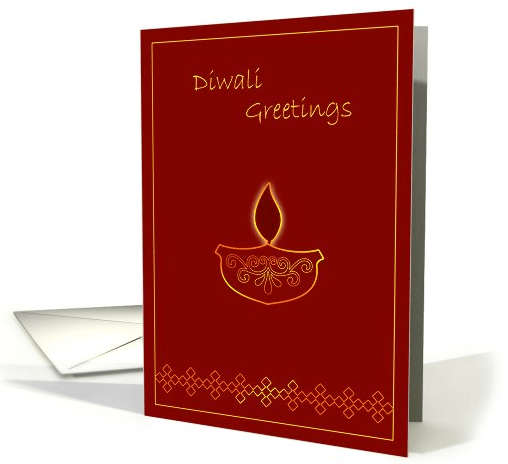
We are a team of two sisters. We used to make cards using various materials with our whole family when we were young. Over the years, we have enjoyed many things together, some of which include performing skits without any audience, experimenting recipes when our mother was not home, building cardboard houses. Now we live in two different countries but with this store, we are once again designing cards together.
One of our main challenge on GCU was not knowing the American culture and the taste of Americans in terms of design
details and color combinations. For example, it was impossible for us to imagine a black card for wedding related occasions. It would never be done in our country as black is considered as inauspicious, but we saw the most popular wedding related cards were black and white. So we had to learn about American holidays, customs, etc., and design differently than our comfort zone.
The card was selected as Design of the Day last year and we like it as we have used very few fine outlines, still those golden outlines give it a festive look.
Share this:

Dash of Inspiration: Ring in 2013!
A Dash of Inspiration, A Cup of Creativity by Doreen
Ring in 2013!

The best time to create cards for ringing in the New Year is now! Get them into the review cycle with plenty of time to give the search engines the three to four months it takes to bring them to the forefront of those customers searches!
Here are some fun brushes and styles for your tool box to add sparkle, glitter and fireworks to those New Year’s Eve cards for 2013!
AND . . . Don’t forget to update all your 2012 New Year’s Cards, as well as any 2011 Christmas/Holiday Cards so you are ready for those early bulk orders!
Cheers Frosted Glass Brush by altergromit at deviantART
Glitter & Sparkle Brush Set by Obsidian Dawn
Set of 11 Fireworks Brush Set by NoOrdinaryLove at deviantART
Metallic Glitter Layer Styles by Shelby Kate Schmitz
See you next week!

Share this:

Critique Clinic – August 31-September 2, 2012

How does it work? For three days a week (Friday-Sunday midnight), I will open the clinic to any artist who wants an honest peer review and critique of a card which gets plenty of clicks but no sales, so something’s probably not quite right, or you’ve got a new design you want to test drive, or you’re unsure about the marketability of a card. Or perhaps you’re a newbie who isn’t sure if a recently submitted card is up to a marketable standard. Anyone is welcome to participate. In fact, I encourage everyone to at least look at the cards in question and read the critique comments – you may learn something. The purpose of the clinic is to help artists improve the commercial appeal and marketability of their cards.
THE RULES
- ONE card per artist only.
- Card must be for sale at Greeting Card Universe.
- We will take an unlimited number of artists, including those who have submitted recently, HOWEVER I reserve the right to close a clinic for the day if the submissions become overwhelming. If the clinic has been closed, and you submit a card, your comment will be deleted.
- To submit a card for critique, post a link to the card at GCU in the comments section of this clinic post. Allowances will be made if you’ve had a card declined, or made a new design you’d like advice on. Give us the link where we can see the card, such as your private gallery, Flickr, Tinypic, etc.
- Any artist is free to comment and/or give a critique of a submitted card. HOWEVER, post-and-run comments like “great card” or “you suck” will not be tolerated, nor will abuse. Criticism should be constructive, not destructive. Play nice or you will be banned.
- I also won’t tolerate temper tantrums if you decide your “artistic integrity” is being stepped on because you asked for a critique, and someone told you the photo you’re using isn’t in focus. If you can’t take honest criticism, don’t submit. Once gets you a warning; twice and you’re banned from submitting in the future.
- Artists who critique may do so by giving their opinion, posting an example of another card, or pointing the submitter to a video, on-line article, or other helpful suggestion.
- Don’t forget that artists who are giving you tips and helpful advice are volunteering their time and trouble. Be nice. A link back to their store on your website or blog is appreciated (but not mandatory).
- You are free not to take any advice offered. There’s no guarantee any card will be a bestseller, so don’t come into the clinic with unrealistic expectations.
- Rules may change as we go along and we see how things turn out, okay?
So without any further ado, I declare this week’s Critique Clinic open!
Share this:

Design Contest: All or Nothing – VOTE
It’s time to vote for your favorite card! (Apologies for the delay. I had some technical issues that took a little time to resolve).
You’ll find the entries listed below. Vote for your favorite card until September 5. Click on the thumbnail to see the card at a bigger size.
On September 6, I’ll announce the winner. Artists, if you’ve got an entry and you’ve nominated another artist’s card, you might want to urge them to promote the contest on Facebook, Twitter, blogs, and other media. And don’t forget to promote yourself, either. Every vote counts!
The winner with the most votes will receive a prize – 5 free card credits OR $10 Amazon.com gift certificate. Good luck to all nominees and happy voting!
1.  2.
2.  3.
3.
4.  5.
5.  6.
6. 
7.  8.
8.  9.
9. 
10.  11.
11.  12.
12. 
13.  14.
14.  15.
15. 
16.  17.
17.  18.
18. 
19.  20.
20.  21.
21. 
22.  23.
23.  24.
24. 
Share this:

Font Frenzy: Sail

So if you don’t know about Font Squirrel by now, you’re not a serious fonts collector. The fonts on the site are free for commercial use. There’s some “much of a muchness” about a some of the fonts, but there’s also a varied selection of all kinds of typefaces from grunge to handwritten to script and more.
I’m highlighting Sail today because I liked the cursive style script. It’s fatter than Scriptina, not quite as fussy, but I can see that it will go well in combination with other, simpler, non-script fonts. Looks great by itself, too. As you can see from the sample below, you may need to adjust the kerning (space between letters) or the space between words if you’re working with a tight line, but that’s minor.
Have fun!

Share this:

Dash of Inspiration: Trick or Treat!
A Dash of Inspiration, A Cup of Creativity by Doreen
Trick Or Treat
Time is definitely running out for making Halloween cards for this year, but sometimes inspiration for a given holiday comes more readily when that holiday is nearing, and the stores are filled with inspiring decorations. So even though cards you create now for this coming Halloween may not be found by the search engines in time for sales this year, just consider yourself ahead for next year! Create when the mood strikes you!
For a bit on Spooktacular Inspiration, check out this collection of Halloween imagery from noupe.com.
Illustrator Users: Ghost Tutorial by Jasmina Stanojevic:
45 Horrifying Photoshop Tutorials for Halloween Season by Naldz Graphics:
Set of 85 Halloween Shapes by All-Silhouettes
For those of you new to the GCU Community Blog, here is a link to last year’s Halloween Dash of Inspiration which has more Treats for your design bag!
See you next week!

Don’t forget to consider using the personalization feature when creating cards!
Share this:

News: Forum Down

In case you missed it, there was an announcement on Facebook that the GCU Forum is down. Admin is aware of the problem and hope to have it fixed by Tuesday. Fingers crossed!
In the meantime, if you’re jonesing for a chat with fellow artists, check out the above link for the Facebook Artists’ Group.
Share this:

Critique Clinic – August 24-26, 2012
How does it work? For three days a week (Friday-Sunday midnight), I will open the clinic to any artist who wants an honest peer review and critique of a card which gets plenty of clicks but no sales, so something’s probably not quite right, or you’ve got a new design you want to test drive, or you’re unsure about the marketability of a card. Or perhaps you’re a newbie who isn’t sure if a recently submitted card is up to a marketable standard. Anyone is welcome to participate. In fact, I encourage everyone to at least look at the cards in question and read the critique comments – you may learn something. The purpose of the clinic is to help artists improve the commercial appeal and marketability of their cards.
THE RULES
- ONE card per artist only.
- Card must be for sale at Greeting Card Universe.
- We will take an unlimited number of artists, including those who have submitted recently, HOWEVER I reserve the right to close a clinic for the day if the submissions become overwhelming. If the clinic has been closed, and you submit a card, your comment will be deleted.
- To submit a card for critique, post a link to the card at GCU in the comments section of this clinic post. Allowances will be made if you’ve had a card declined, or made a new design you’d like advice on. Give us the link where we can see the card, such as your private gallery, Flickr, Tinypic, etc.
- Any artist is free to comment and/or give a critique of a submitted card. HOWEVER, post-and-run comments like “great card” or “you suck” will not be tolerated, nor will abuse. Criticism should be constructive, not destructive. Play nice or you will be banned.
- I also won’t tolerate temper tantrums if you decide your “artistic integrity” is being stepped on because you asked for a critique, and someone told you the photo you’re using isn’t in focus. If you can’t take honest criticism, don’t submit. Once gets you a warning; twice and you’re banned from submitting in the future.
- Artists who critique may do so by giving their opinion, posting an example of another card, or pointing the submitter to a video, on-line article, or other helpful suggestion.
- Don’t forget that artists who are giving you tips and helpful advice are volunteering their time and trouble. Be nice. A link back to their store on your website or blog is appreciated (but not mandatory).
- You are free not to take any advice offered. There’s no guarantee any card will be a bestseller, so don’t come into the clinic with unrealistic expectations.
- Rules may change as we go along and we see how things turn out, okay?
So without any further ado, I declare this week’s Critique Clinic open!
Share this:

Nuts and Bolts: Incorporating Design Trends

We’ve talked before about incorporating the latest design trends into your greeting cards.
The things shoppers see when they’re looking at other goods – such as throw pillows, wallpaper, furniture, clothing, business cards, office supplies, stationary, letterpress, websites – schools their eye to a certain “look.” By capturing that “look” in your cards, you make your cards more appealing.
Today, I’ll let you in on three of the hot trends we’re seeing everywhere and give you tips on how to incorporate them into your greeting cards so you can offer cutting edge, fresh, and fashionable designs to your customers.
CHEVRONS

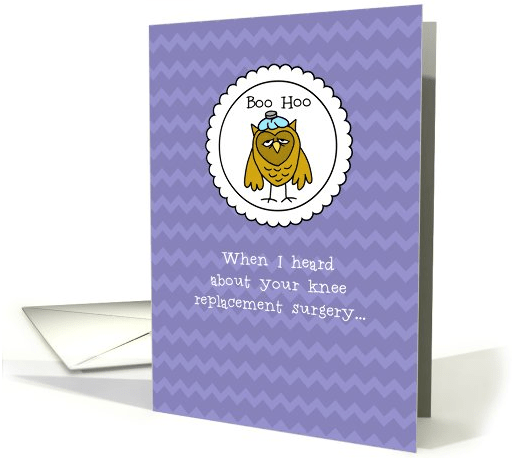
As design elements, chevrons are smoking hot. I’ve seen them used monochrome (white + one other color) and multi-colored, thick and thin, either standalone (which doesn’t really suit greeting cards) or as a background for other graphics (yes, now we’re talking!)
Caution: Keep in mind that the thicker the chevrons and the more bold you make them, the more difficult it’s going to be to add other design elements to your card. Whatever you slap on top of a very bold chevron background will be drowned unless you’ve taken care to ensure it stands out sufficiently.
Best use? In backgrounds, tone on tone colors seem to work best. Such as a background of lighter violet with the chevron pattern in a slightly darker violet. A subtle statement can be very effective without overwhelming other elements. See the example below.
RIBBONS

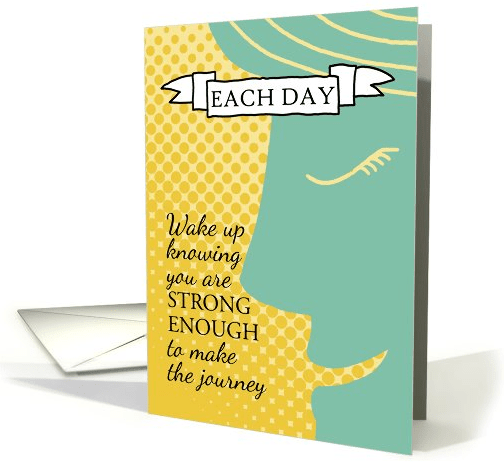
Oh, my goodness, ribbons are popping up everywhere! Above you’ll see 3 examples of the kind of “ribbons” I’m talking about. Not 3D scrapbooking-style, but either simple flat ribbons, or more elaborate ones, all with writing inside.
Caution: You can pair ribbons with other design elements on a card, but be careful of your composition. There’s a fine line between a well composed design, and a design that looks like three disparate elements were slapped on a background at random. In addition, when the ribbon has a straight area for text, you’ll be fine. However, if the text area curves as in one of the examples above, more care must be taken with lettering to ensure it looks good and not goofy.
Best use? Highlight a single word or phrase you want to emphasize in the ribbon, and put the rest of the text on the card. Play with the composition a little. Experiment to find a placement that’s pleasing to the eye. In the example below, we incorporated the ribbon + a strong design element.
NATURE IN SILHOUETTE
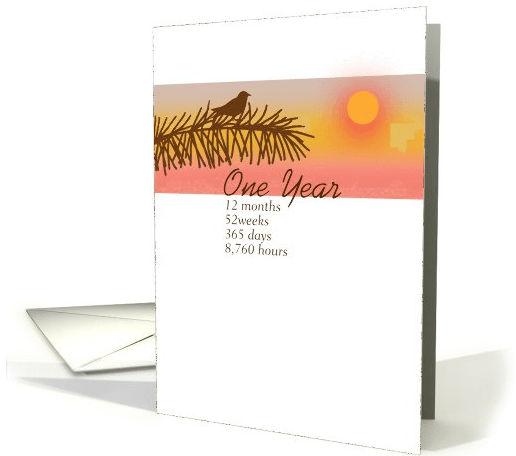
Over the last 15 years or so, most of the “nature” design we’ve seen incorporate lots of swirls and curls. This style is definitely on the way out as an up and coming trend is growing hotter. Sleek, simpler silhouettes of animals, plants, and recognizable flowers (think daisy, for example) are being used to good effect.
Caution: The silhouette doesn’t have to be black – choose a good color depending on your background and other design elements on the card. Just be sure your use of silhouettes makes sense with the overall design. Don’t fall into the trap of using silhouettes all the time, either. Sometimes, a silhouette makes a good card design great. Other times, you need the pop of color or contrast that comes with a colorful plant or flower, or the impact of a more detailed animal.
Best Use? In today’s contemporary, “less is more” designs, a well placed silhouette can speak volumes, especially on busier or brighter backgrounds where more traditionally detailed elements would be lost. In the example below, we created a silhouette of a pine branch with a bird silhouette to go against a watercolor effect sunrise.
So there you have it – three of the hottest new trends in design which look to continue for some time. Have fun incorporating these trends into your own work!
Share this:

Design Spotlight: Andrew Winters
Today’s Design Spotlight shines on Andrew Winters of PlainFolk Greetings, an artist with a unique vision and a great sense of humor!
_________________________

Inside: Ah Mish You, Alot.
I have always enjoyed both drawing and making people smile, so designing humorous greeting cards was a natural fit. ‘
After a career path change in 2009, I used the extra time to dedicate myself to seriously being funny (I know–oxymoron). My inspiration for PlainFolk Greetings came to me while driving through the country roads of beautiful Lancaster County, PA. It began with the simple hand-painted lettering used by people to sell their home grown produce. It was all very organic.
Naturally, Lancaster is known for it’s Amish community and the farm life in general, so that became my theme. I do try hard not to be disparaging of the Amish lifestyle when developing gags or admittedly bad puns. My featured card is a personal favorite that typifies the simple but strong message I try to offer card buyers.


 GCU Community