Critique Clinic – October 10-12, 2014

How does it work? For three days a week (Friday-Sunday midnight), I will open the clinic to any artist who wants an honest peer review and critique of a card which gets plenty of clicks but no sales, so something’s probably not quite right, or you’ve got a new design you want to test drive, or you’re unsure about the marketability of a card. Or perhaps you’re a newbie who isn’t sure if a card is up to a marketable standard. Anyone is welcome to participate. In fact, I encourage everyone to at least look at the cards in question and read the critique comments – you may learn something. The purpose of the clinic is to help artists improve the commercial appeal and marketability of their cards.
THE RULES
- ONE card per artist only.
- Card must be intended for sale at Greeting Card Universe.
- To submit a card for critique, post a link to the card at GCU in the comments section of this clinic post. Allowances will be made if you’ve had a card declined, or made a new design you’d like advice on before submission. Give us the link where we can see the card, such as your private gallery, Flickr, Tinypic, etc. If you do give a private gallery link, be sure your private module gallery is ON. Please do not post links to your Manage Cards section – do you really want strangers tinkering with your cards? And please don’t ask us to critique a card that’s pending review – we can’t see it until it’s approved.
- Any artist is free to comment and/or give a critique of a submitted card. HOWEVER, post-and-run comments like “great card” or “you suck” will not be tolerated, nor will abuse. Criticism should be constructive, not destructive. Play nice or you will be banned.
- I also won’t tolerate temper tantrums if you decide your “artistic integrity” is being stepped on because you asked for a critique, and someone told you the photo you’re using isn’t in focus. If you can’t take honest criticism, don’t submit. Once gets you a warning; twice and you’re banned from submitting in the future.
- Artists who critique may do so by giving their opinion, posting an example of another card, or pointing the submitter to a video, on-line article, or other helpful suggestion.
- Don’t forget that artists who are giving you tips and helpful advice are volunteering their time and trouble. Be nice. A link back to their store on your website or blog is appreciated (but not mandatory).
- You are free not to take any advice offered. There’s no guarantee any card will be a bestseller, so don’t come into the clinic with unrealistic expectations.
- Rules may change as we go along and we see how things turn out, okay?
So without any further ado, I declare this week’s Critique Clinic open!
Share this:

Tips and Tricks: Free CU Vector Sites


Vector graphics can be used in Adobe Illustrator, later versions of Photoshop, and other graphics editing software such as Inkscape that supports AI and EPS files. Vectors have an advantage over clipart in JPG or PNG formats since you can scale vector files to any size without loss of quality.
Just like any other 3rd party graphics, if you intend to use someone else’s vector art in your designs, be sure to…
- Read and understand all of the TOU/Licensing. Does the licensing agreement allow unlimited (extended) commercial use? Or are there restrictions?
- Obey any and all restrictions in the TOU.
- Make a note of the web page where you downloaded the vector as well as the page the website’s licensing/TOU is located. You will need to include this information in your Notes to Reviewer to avoid your card being Returned for Edits.
Here’s are a couple of posts on other site offering a pretty good run down of what’s out there. There may be some overlap between them. Of course, you can always do your own searches t find other sources of material. Have fun!
10 Free Commercial Use Vector Graphics Galleries
Share this:

Tips and Tricks: Angel Policy

What the heck’s an Angel Policy?
An angel policy is a licensing phrase often used by rubber stamp companies which lays out the terms under which you—the purchaser of the rubber stamp—may use their product. Sometimes, you’ll also see a business listed as an “Angel Company.”
If you buy rubber stamps with the intention of using the designs to make greeting cards for GCU, here are a few issues to watch out for:
- Ensure the company’s Angel Policy permits not only commercial use, but is okay for Print on Demand (POD), mass production, or mechanical reproduction. Quite often, licensing restrictions allow for the reselling of hand-made items only.
- Even if you see the phrase “royalty free,” some restrictions may apply. Read the Angel Policy thoroughly.
- Should the policy allow you to use the stamps commercially for mass production, do not forget to include a link to the design on the company’s website + an additional link to the TOU/Angel Policy in your Notes to Reviewer. This is an essential step. Omitting this information will likely get your card Returned for Edits.
Below are a couple of links to more information. Be very careful, respect other’s copyrights, and read, read, read the Angel Policy before you stamp n’ sell.
Angel Policies of Various Companies
Share this:

Rainbow Connection: Color Emotion Guide

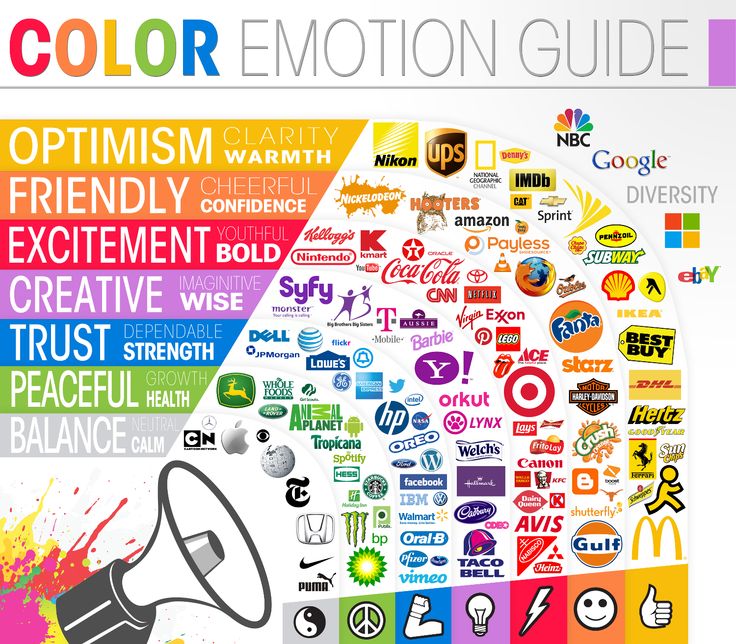
Thelogocompany.net put together an interesting little chart on the emotions behind color choices (see below, click for larger view). Next time you’re designing cards, think about the emotions you want to convey, not just what color suits you at the moment. Perhaps you’ll give your design some additional punch which results in more attention from shoppers and more sales!
For additional in-depth information, read The Meanings Behind Colors.
Share this:

Dash of Inspiration: Freebies Week
A Dash of Inspiration, A Cup of Creativity by Doreen
Freebies Week

Just passing on some fun finds this week which fit into the holiday trends this season. Please be sure to read and abide by the TOU for these wonderful Commercial Use downloads.
Digital Fabric Inspired Paper Pack by thecoffeeshopblog
30 Great Free Paper Backgrounds and Textures from Creative Closeup
Cardboard Textures and Objects: High Resolution Pack by Jacob Gube at SixRevisions.co
The following fabric texture sets are from FudgeGraphics.com
Creased Fabric Set: 14 Free Hi-Res Textures
Free High Resolution Plain and Grunge Paper Textures
In case you missed it, be sure to read about the trends for this upcoming holiday season and how these FREEBIES will add a trendy touch to your designs for 2014.
Dash of Inspiration: 2014 Holiday Trends – July 7th, 2014

So until next week … Learn … Create … Inspire!
Share this:

Critique Clinic – October 3-5, 2014
How does it work? For three days a week (Friday-Sunday midnight), I will open the clinic to any artist who wants an honest peer review and critique of a card which gets plenty of clicks but no sales, so something’s probably not quite right, or you’ve got a new design you want to test drive, or you’re unsure about the marketability of a card. Or perhaps you’re a newbie who isn’t sure if a card is up to a marketable standard. Anyone is welcome to participate. In fact, I encourage everyone to at least look at the cards in question and read the critique comments – you may learn something. The purpose of the clinic is to help artists improve the commercial appeal and marketability of their cards.
THE RULES
- ONE card per artist only.
- Card must be intended for sale at Greeting Card Universe.
- To submit a card for critique, post a link to the card at GCU in the comments section of this clinic post. Allowances will be made if you’ve had a card declined, or made a new design you’d like advice on before submission. Give us the link where we can see the card, such as your private gallery, Flickr, Tinypic, etc. If you do give a private gallery link, be sure your private module gallery is ON. Please do not post links to your Manage Cards section – do you really want strangers tinkering with your cards? And please don’t ask us to critique a card that’s pending review – we can’t see it until it’s approved.
- Any artist is free to comment and/or give a critique of a submitted card. HOWEVER, post-and-run comments like “great card” or “you suck” will not be tolerated, nor will abuse. Criticism should be constructive, not destructive. Play nice or you will be banned.
- I also won’t tolerate temper tantrums if you decide your “artistic integrity” is being stepped on because you asked for a critique, and someone told you the photo you’re using isn’t in focus. If you can’t take honest criticism, don’t submit. Once gets you a warning; twice and you’re banned from submitting in the future.
- Artists who critique may do so by giving their opinion, posting an example of another card, or pointing the submitter to a video, on-line article, or other helpful suggestion.
- Don’t forget that artists who are giving you tips and helpful advice are volunteering their time and trouble. Be nice. A link back to their store on your website or blog is appreciated (but not mandatory).
- You are free not to take any advice offered. There’s no guarantee any card will be a bestseller, so don’t come into the clinic with unrealistic expectations.
- Rules may change as we go along and we see how things turn out, okay?
So without any further ado, I declare this week’s Critique Clinic open!
Share this:

Font Frenzy: Thirsty Script

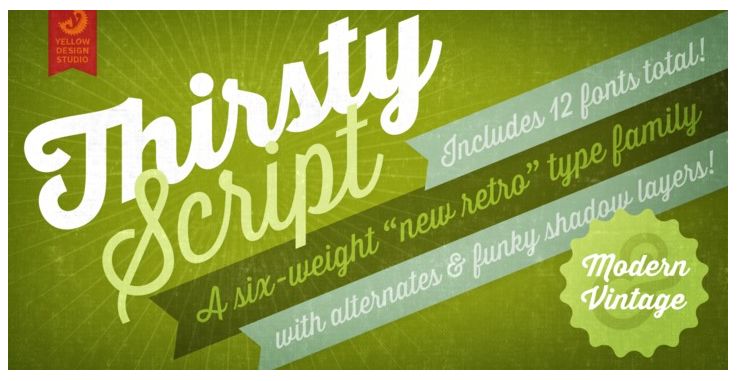
We know it’s easy for a designer to kind of get locked into using their favorite fonts over and over, but sometimes you’ve got to broaden your designer’s toolbox. Got a thirst for a delicious retro stylish font? Thirsty Script has it all—the famil comes with optional ligatures, six different weights, shadows,and contextual and stylistic alternates. The whole family is on sale right now for about $26 US or you can buy just the main font for less if you choose. Example below. Have fun!
Share this:

Font Frenzy: Free Retro Fonts
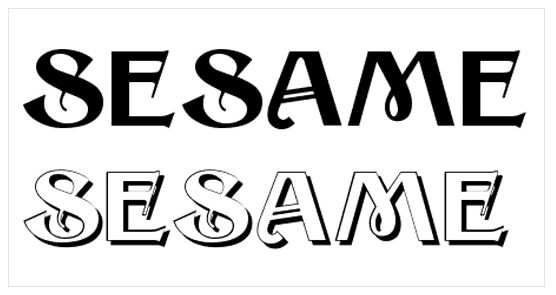
33 Free Retro Fonts is a list containing some very nice fonts with a retro/vintage feel. Some are free for commercial use, but not all, so be sure to check the licensing info for each font you’d like to download. Examples below (the two I chose are OK for commercial use). Have fun!

Share this:

Font Frenzy: Flamenca
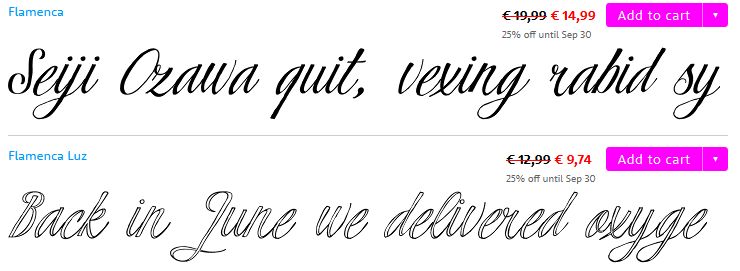
Every professional designer has to invest in their business from time to time, paying for the tools to make your creative visions come to life. Flamenca is a lovely, modern calligraphy font with a flair + swashes and ligatures for fancier work that comes in two weights. At the moment, you can get both fonts for $17,=.99 or pay $14.99 for one. The offer’s good until tomorrow at 6 AM according to the website. An example is below. Have fun!
Share this:

Dash of Inspiration: Reminder to Update
A Dash of Inspiration, A Cup of Creativity by Doreen
Reminder to Update
Today I simply want to toss out that reminder that if you haven’t already, NOW is the time you should go back through all your cards for the upcoming holiday season – from Halloween to Chinese New Year – and be sure they are all up to date with the correct year. Keep in mind that even those Custom cards where the customer can change the year themselves, will sell better if you take the extra time to change them to the current year.
Because I’m keeping this short and sweet, here are some great tips and freebies from ‘holiday posts’ in previous years. If you didn’t grab them, or if you are new to GCU, these are all worth a look – please keep in mind some of these are old posts, so you may run across a broken link:
Font Frenzy: 12 Fonts of Christmas – December 6, 2012
Tips and Tricks: Birthday on Holiday – February 26, 2013
Dash of Inspiration: 2014 Holiday Trends – July 7, 2014
In case you missed it, matching your card front to the Custom colors on GCU, just got easier.
Dash of Inspiration: GCU Color Chart – September 15, 2014
Remember, the Artist Resources listing on the GCU Community Blog where Corrie keeps an up to date source of links to all the blog posts which feature Tips and Tutorials.
So until next week … Learn … Create … Inspire!


