Rainbow Connection: Palettes on Pinterest

Pinterest is a great place to find inspiration and can also be an excellent source of new color palettes to use in your design work. Here are a few places we recommend featuring colors. Don’t forget, if you’ve got a Pinterest account, you can Follow any of these boards and be notified of changes/additions.

Inspirational Color Palettes
With over 3,000 pins, there’s plenty here for everybody’s taste.
Color Palettes
Mostly pictures with very fresh color schemes.
Perfect Palettes
Some very trendy color schemes going on here.
Pins From the Perfect Palette.com
A collection of trendy wedding palettes
Have fun and happy designing!
Share this:

Inspiration Station: Hanukkah Inspiration

While you’re working on your holiday designs, don’t forget about Hanukkah. In 2014, this major Jewish holiday begins on December 16 and ends on December 24. Since the days of Hanukkah are calculated each year using a lunar calendar, the dates will change annually. If you don’t know about Hanukkah already, here are some resources that will help.
If you’re going to create Hanukkah cards, be culturally sensitive. Do your homework. Use the correct themes, colors, etc. Avoid traditional Christmas imagery like reindeer, ornaments, trees, Santa, etc. Hanukkah is NOT “Jewish Christmas.”
The Hanukkah menorah—called a hanukkiyah—has a very specific shape of 9 branches. Other designs specific to Hanukkah include the Star of David, dreidel, 9 candles, gelt, and the colors blue and white.
Need some help coming up with verse? Check out What to Write in Hanukkah Cards for ideas.
Here are some places you can find inspiration for designing your own Hanukkah cards this year:

Hanukkah – Greeting Cards & Decorations

Share this:

Dash of Inspiration: Writing Verse
A Dash of Inspiration, A Cup of Creativity by Doreen
Writing Verse

There is no doubt that if writing verse for the inside of your greeting cards does not come naturally, it can be frustrating. We also know, that here in the states anyway, cards with verse have more sales than blank cards. So, I thought I would pass along my reference tools and offer some links to help you improve your verse-writing skills.
Of course you are all familiar with the power of the Thesaurus and I really enjoy the freedom of having this tool accessible online.
Occasionally, usually for children’s cards, I like my inside verse to rhyme. I’ve found this tool very handy when I need to find words for rhyming.
I love to ‘play on words/phrases’. I find it can even inspire a visual creation and using idioms is a great way to connect words and visual elements. Idioms – definition: “An expression whose meaning is not predictable from the usual meanings of its constituent elements, as kick the bucket or hang one’s head, or from the general grammatical rules of a language, as the table round for the round table, and that is not a constituent of a larger expression of like characteristics.”
Way back when, I had a Creative Writing teacher whose words are still guiding my verse writing today – she said; “Rather than trying to conform to poetry styles, simply remember the only thing which makes words a poem, is the rhythmic manner in which you choose to express your message.”
These words are ones I live by today. I could not longer tell you what style of poem is what – nor do I care – however when I write my card verses, I am very much aware of the rhythm and will often count syllables as if counting notes in a song.
Regardless of your writing style, here are some links which might offer tips to improve your verse or push you forward when you get stuck.
Guidelines for Using Capital Letters
11 Rules of Writing, Grammar, and Punctuation
31 Ways to Find Inspiration for Your Writing
So until next week … Learn … Create … Inspire!
Share this:

Critique Clinic – August 8-10, 2014

How does it work? For three days a week (Friday-Sunday midnight), I will open the clinic to any artist who wants an honest peer review and critique of a card which gets plenty of clicks but no sales, so something’s probably not quite right, or you’ve got a new design you want to test drive, or you’re unsure about the marketability of a card. Or perhaps you’re a newbie who isn’t sure if a card is up to a marketable standard. Anyone is welcome to participate. In fact, I encourage everyone to at least look at the cards in question and read the critique comments – you may learn something. The purpose of the clinic is to help artists improve the commercial appeal and marketability of their cards.
THE RULES
- ONE card per artist only.
- Card must be intended for sale at Greeting Card Universe.
- To submit a card for critique, post a link to the card at GCU in the comments section of this clinic post. Allowances will be made if you’ve had a card declined, or made a new design you’d like advice on before submission. Give us the link where we can see the card, such as your private gallery, Flickr, Tinypic, etc. If you do give a private gallery link, be sure your private module gallery is ON. Please do not post links to your Manage Cards section – do you really want strangers tinkering with your cards? And please don’t ask us to critique a card that’s pending review – we can’t see it until it’s approved.
- Any artist is free to comment and/or give a critique of a submitted card. HOWEVER, post-and-run comments like “great card” or “you suck” will not be tolerated, nor will abuse. Criticism should be constructive, not destructive. Play nice or you will be banned.
- I also won’t tolerate temper tantrums if you decide your “artistic integrity” is being stepped on because you asked for a critique, and someone told you the photo you’re using isn’t in focus. If you can’t take honest criticism, don’t submit. Once gets you a warning; twice and you’re banned from submitting in the future.
- Artists who critique may do so by giving their opinion, posting an example of another card, or pointing the submitter to a video, on-line article, or other helpful suggestion.
- Don’t forget that artists who are giving you tips and helpful advice are volunteering their time and trouble. Be nice. A link back to their store on your website or blog is appreciated (but not mandatory).
- You are free not to take any advice offered. There’s no guarantee any card will be a bestseller, so don’t come into the clinic with unrealistic expectations.
- Rules may change as we go along and we see how things turn out, okay?
So without any further ado, I declare this week’s Critique Clinic open!
Share this:

Tips and Tricks: New Categories Need Cards


GCU has added some new categories:
- Use “Surrogate” and “Donor” when addressing the recipient. Make the role clear in the inside text
- Put yourself in the shopper’s places. If you were sending this card to someone, what would you say?
- Don’t use crude or crass humor or insensitive language
- Use your Artist’s Notes wisely
Share this:

Design Challenge for July – Results (2)


Here’s what Sherry Harris had to say about this card she designed for a July Cards Wanted request:
“I really like the simplicity, words of strength and bright colors on this card. A wonderful way to cheer up someone who’s received their first Chemo Treatment. Personally, I love creating greeting cards and smile when a customer buys one of mine. I’m proud that they liked my creation and thought the person receiving it would too. It makes me happy to think my work is appreciated.”
The third (and last) post on the July Design Challenge will be up on Tuesday, August 12.
Share this:

July Design Challenge – Results (1)
And here are some of the results of the Design Challenge issued in July – to make card(s) for the Cards Wanted category on the Forum fulfilling customer requests in July. We’ll be posting a few of the submitted designs (in no particular order) spread out over several posts. Enjoy! And thanks & happy selling to those artists who participated.

Shuya Cheng

Sherry Harris

Marcia Socolik
Share this:

Dash of Inspiration: HDR Photography and Effects
A Dash of Inspiration, A Cup of Creativity by Doreen
HDR Photography & Effects
The effects or ‘look’ of HDR photography is very popular right now and will cause you take a second look when you see an image which has HDR post-processing, but what is it? HDR stands for High-dynamic-range. Cameras which do not specialize in High Dynamic Range, take photographs that are considered those with a limited range of exposure which results in a loss of detail in the highlights and shadows of the image. Traditional HDR photographs compensate for this loss of exposure and detail, because the process is generally achieved by capturing multiple photos with different exposures and then merging them into one HDR image.
Though HDR photography was pioneered as early as the 1850s by Gustave Le Gray, most photographers look to Ansel Adams and his creation of the Zone System that really began this artistic journey. Today, most photographer have digital post-processing tools to give the effect of HDR to the entire image or to paint the extended detail into certain areas of the photograph.
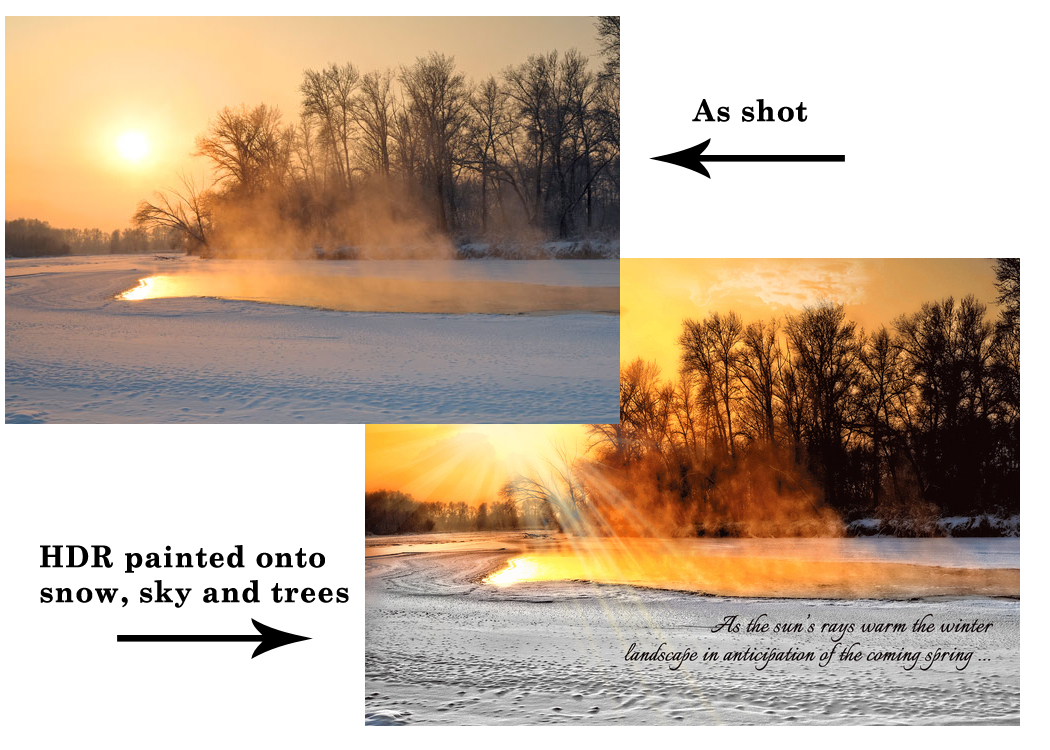
In this Dash of Inspiration, I’m just here to inspire you to learn more about HDR and your options for post-processing software and techniques. Like all ‘effects’, you should research and practice, as this too can be overdone – quickly becoming an image with excessive effects rather than beautiful imagery.
For those who are willing to experiment with shooting HDR photographs, these tutorials will get you off to a good start and you can have some fun experimenting.
Setting Up Your Digital Camera For HDR Shooting – Three-part Series
How to Shoot and Post-Process Professional HDR Photos in One Day
HIGH DYNAMIC RANGE PHOTOGRAPHY
Post-processing HDR Tips and Tutorials:
Lightroom: HDR Video Tutorial by Dave Marrow
Photoshop: How to Manually Create an HDR Photo in Photoshop
Paint Shop Pro – Create perfectly exposed images with HDR Photo Merge
If you find yourself interested in expanding your tool box with HDR software, this list, though not complete, will help you choose software.
Top 20 Best HDR Software Review 2014

For the example images I’ve shown here, I use Perfect Photo Suite 7 which has as part of it’s huge tool set the ability to apply HDR effects by simply painting varying levels only where you want enhancements.
If you need more inspiration to see how amazing HDR effects/photography can really be, browse through these photographs.
So until next week … Learn … Create … Inspire!
Share this:

Critique Clinic – August 1-3, 2014
How does it work? For three days a week (Friday-Sunday midnight), I will open the clinic to any artist who wants an honest peer review and critique of a card which gets plenty of clicks but no sales, so something’s probably not quite right, or you’ve got a new design you want to test drive, or you’re unsure about the marketability of a card. Or perhaps you’re a newbie who isn’t sure if a card is up to a marketable standard. Anyone is welcome to participate. In fact, I encourage everyone to at least look at the cards in question and read the critique comments – you may learn something. The purpose of the clinic is to help artists improve the commercial appeal and marketability of their cards.
THE RULES
- ONE card per artist only.
- Card must be intended for sale at Greeting Card Universe.
- To submit a card for critique, post a link to the card at GCU in the comments section of this clinic post. Allowances will be made if you’ve had a card declined, or made a new design you’d like advice on before submission. Give us the link where we can see the card, such as your private gallery, Flickr, Tinypic, etc. If you do give a private gallery link, be sure your private module gallery is ON. Please do not post links to your Manage Cards section – do you really want strangers tinkering with your cards? And please don’t ask us to critique a card that’s pending review – we can’t see it until it’s approved.
- Any artist is free to comment and/or give a critique of a submitted card. HOWEVER, post-and-run comments like “great card” or “you suck” will not be tolerated, nor will abuse. Criticism should be constructive, not destructive. Play nice or you will be banned.
- I also won’t tolerate temper tantrums if you decide your “artistic integrity” is being stepped on because you asked for a critique, and someone told you the photo you’re using isn’t in focus. If you can’t take honest criticism, don’t submit. Once gets you a warning; twice and you’re banned from submitting in the future.
- Artists who critique may do so by giving their opinion, posting an example of another card, or pointing the submitter to a video, on-line article, or other helpful suggestion.
- Don’t forget that artists who are giving you tips and helpful advice are volunteering their time and trouble. Be nice. A link back to their store on your website or blog is appreciated (but not mandatory).
- You are free not to take any advice offered. There’s no guarantee any card will be a bestseller, so don’t come into the clinic with unrealistic expectations.
- Rules may change as we go along and we see how things turn out, okay?
So without any further ado, I declare this week’s Critique Clinic open!
Share this:

Inspiration Station: Inspiring Birthdays

Birthday cards remain a popular item to send and receive. While it’s unlikely you’ll sell a birthday card in bulk (unless it’s a party invitation), several steady sellers in your store will increase your commissions nicely.
Like clothing fashions, trends in greeting card designs come and go. Where do you go for inspiration? In the real world, check out the racks at grocery stores, drug stores, etc. On-line, the biggest commercial greeting card retailers have websites you can browse—always a good idea. And here are some links to find inspiration on Pinterest.
PTI Birthday Cards
PTI stands for Papertrey Ink, a company selling stamps, dies, papers, etc. to the scrapbooking and handmade card communities. Keep an eye on this business. Such companies are very quick to catch onto trends.
Birthday Cards For Him
A small collection of birthday cards for the guys out there. Some very creative ideas here.
Birthday Cards
A big collection of birthday cards with loads of floral designs if you’re wanting to design something for the ladies.
Funny Birthday Cards
As advertised—birthday cards that tickle the funny bones.
Little G – Birthday Cards & Illustrations
This particular pinner has an excellent eye for trendy designs.


