Nuts and Bolts: Beveled / Shadow Text.

You may see the following comment / request from the review team:
Please remove or significantly reduce the shadow and/or beveled effects on the text and/or elements, which are excessive and do not balance with the style of this design.
Beveling and deep shadow effects on text rarely works on a professional greeting card image. These styles are out-dated and lack the professional polish we look for in new submissions and those cards we keep in the public marketplace.See here on the blog for examples:
https://gcucommunity.com/2013/06/10/dash-of-inspiration-typography-effects/
GCU Community Manager
Share this:

Wanted New Cards: Off to College for Friend.


These cards will go here:
Share this:

Freebie Wednesday: Monstah Typeface
Freebie Wednesday: Monstah Typeface
Monstah Typeface (by Drizy Studio) is the freebie of this week at The Hungry Jpeg. You have 6 days left to get over there, don’t miss out!
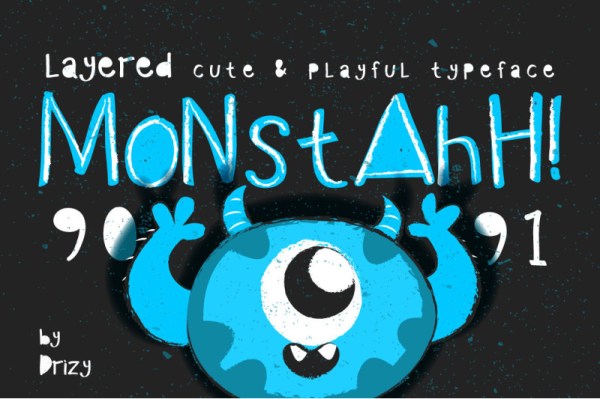
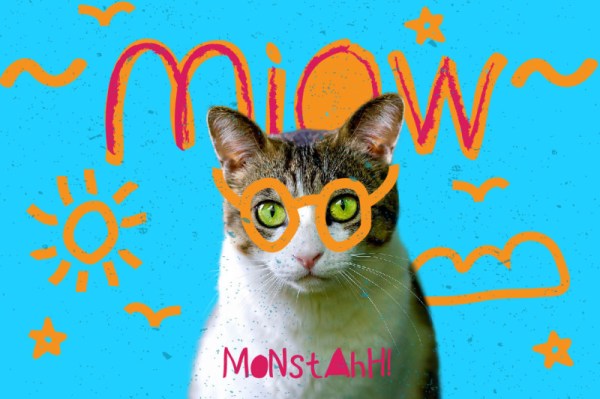
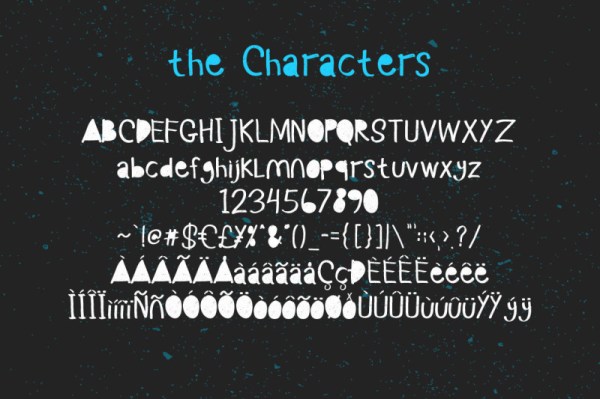
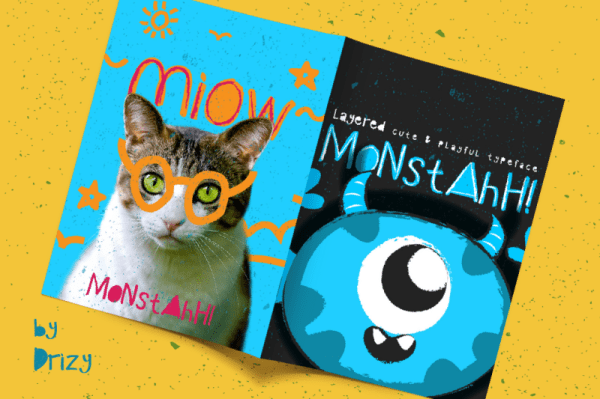
This product comes with a complete commercial license.
Share this:

Nuts and Bolts: Dedicate Yourself to the Details
Thank you for working on this with us. We want to attain the best possible printing for the shopper to avoid a return.
It was also pointed out that the comma on the card front should be replaced with a semi-colon. Call it fate or destiny;
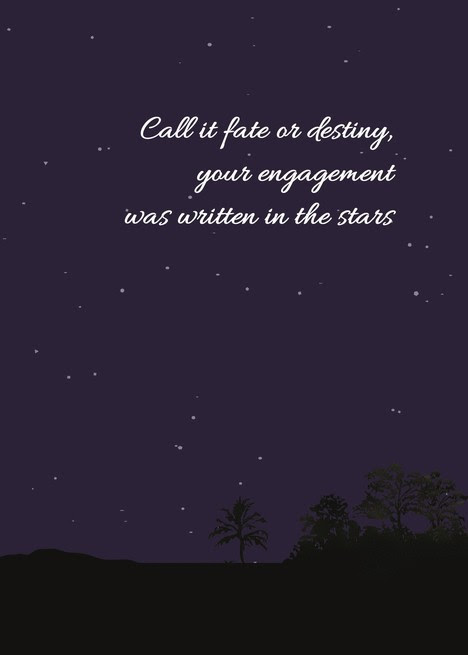
Resulting Image:
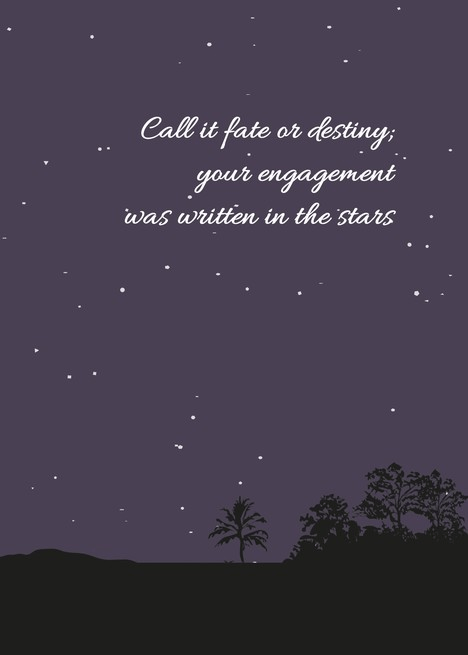
Thank you to GCU artist, Cisillia Tay, for her attention to detail and collaborating with our review team to create a star of a submission that delighted the requesting shopper.
GCU Community Manager
Share this:

Wanted New Cards: New Pet Foster Failure.

Share this:

Freebie Wednesday: Daily Freebies V (last one)
Freebie Wednesday: Daily Freebies V (Last One).
The Hungry Jpeg celebrates the whole month of June with a new freebie every day! What a great chance to score some fabulous designs. All freebies stay available during this month so don’t miss it!


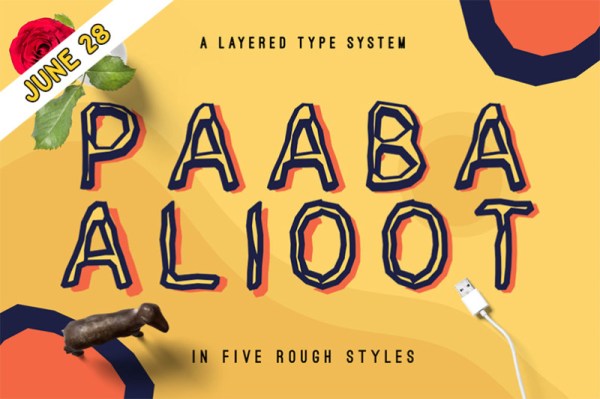


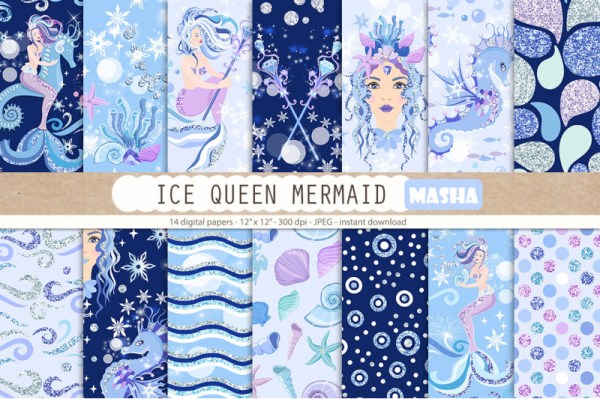
This product comes with a complete commercial license.
Share this:

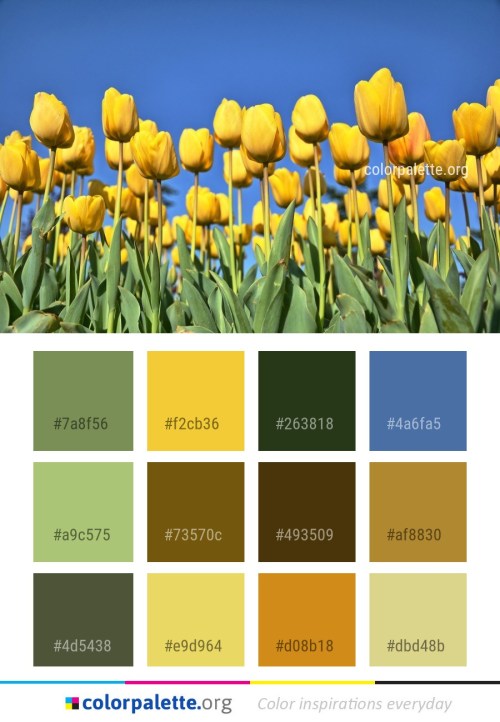
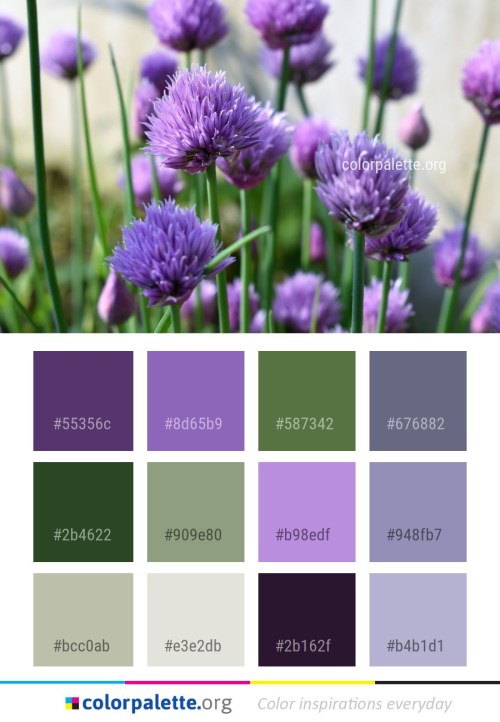
Rainbow Connection: Plant Color Palette Ideas

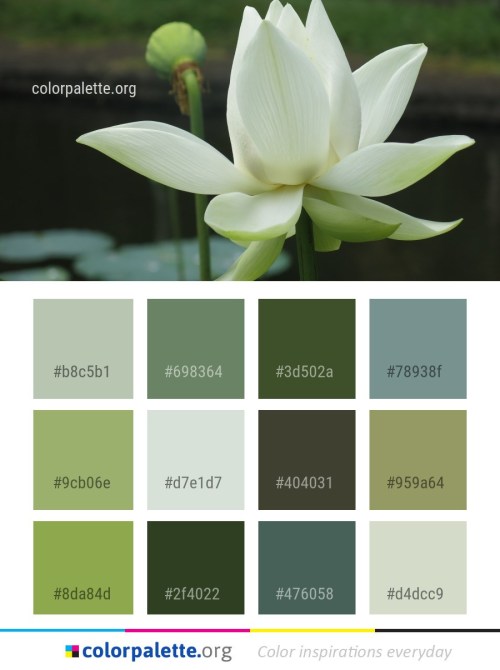
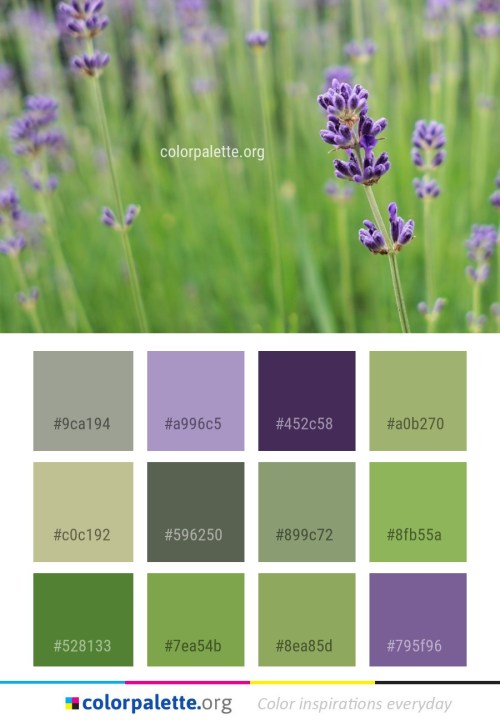
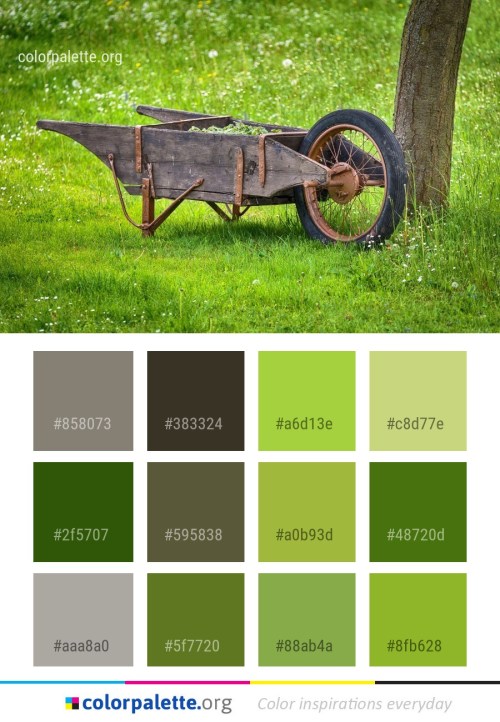
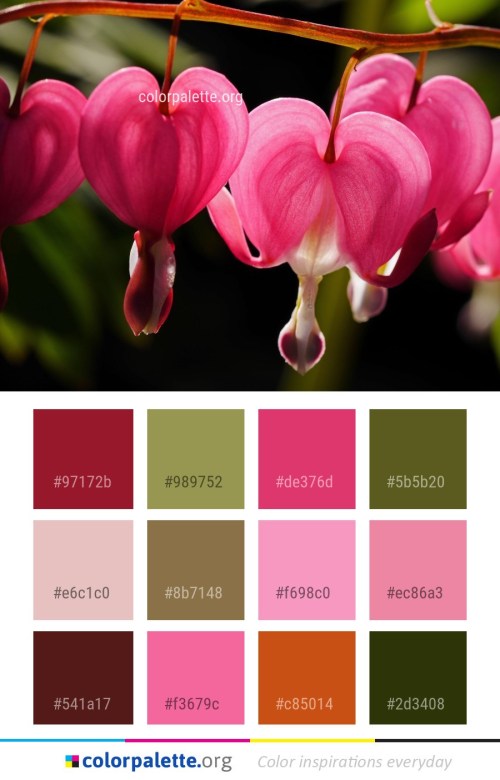


Dash of Inspiration: July 2019 Design Challenge

Hello, fellow artists! This month we are going to challenge you to working in an area you may have little experience in, but will have lots of fun exploring. Let’s get inspired …
……………………………………………………………
Theme: Pattern Play
Requirements:
- Create a brand new design which incorporates two or more patterns which coordinate and compliment each other and the other elements within the design. See tips below which may be helpful.
- Write your own verse/message, be creative and write a message that clearly speaks to your imagery, occasion and recipient.
- Blank verse will not be considered for entry in this challenge.
……………………………………………………………
Entry Deadline: Wednesday, July 31st
……………………………………………………………
How to Enter: Post the PID (card number) and the URL (public storefront link – please WAIT for the card to be available in the public marketplace, please DO NOT post a link to your Manage Cards area) as a post in the challenge blog. We’ll forward your entry to the jury.
……………………………………………………………….
Category:
- Any category well-suited to the imagery/occasion/message.
…………………………………………………………….
Rules:
- Submission must meet GCU’s Submission Guidelines and be Approved through the usual Review Cycle– Fast Track your submission with this in the Notes to Reviewer: July Design Challenge Submission here is the link to the blog post: (include THIS blog post URL)
- Only ONE card per artist per challenge.
- Submissions must be NEW, no existing designs.
- Your entry must meet the Challenge Requirements and Theme or it will not be included in the challenge.
- Stock Card Creations entries will not be accepted.
- Your designs should differ from those already offered in the category of your choice to offer shoppers a variety of choices, not more of the same.
……………………………………………………………………
BLIND Judging: We hope each of you enters every month. Entries are submitted anonymously for judging by the GCU Challenge Jury which means that before and during the challenge, judges do not have any way of knowing what artist is behind each entry. This eliminates any and all concerns with ‘favoritism’. Results will post on the Community Blog. The jury will judge the entries on the following criteria:
- How well the card meets the Challenge Requirements and Theme.
- How well the card speaks to the Category the artist chooses for the card submission.
- Creativity, Execution and Marketability.
……………………………………………………………………
Winners: 1st Place:
- The winning designer’s card and store will be featured on the GCU Public Blog – the blog which customers view and follow.
- As well as featured on the GCU Public Facebook Page – over 57,000 followers, now THAT’S exposure!
- The winning card will be Design of the Day following the announcement of the winners (within 48-hours).
EXCEPTION: Horizontal (landscape) cards may not be featured as DOD due to GCU Home Page space restrictions. In these cases, GCU will choose a different vertically oriented card from your store to feature as DOD. Thank you for your understanding and apologies for this limitation.
- The winning card will be added to the Greeting Card Universe Design Challenge Winners Pinterest Board – currently GCU’s Pinterest Page followers: 4K!
- The winning card, should the artist choose, may be referenced in a new series by the winning artist and he/she may Fast Track all cards in the new series (being sure to give the Challenge URL and winning card PID in your Notes to Reviewer for each card in this series).
- Winning card will be included in a marketing email to over 100,000 customers!
- GCU will create a Meet the Team board for the winning artist under the Pinterest GCU account where the winning artist will be able to pin and promote her own storefront and all that makes them a unique card designer and one of GCU’s artistic community team member.
-
Winning card will be posted on GCU’s Instagram with 6,800 followers and counting!
- GCU will create a Meet the Team board for the winning artist under the Pinterest GCU account where the winning artist will be able to pin and promote her own storefront and all that makes them a unique card designer and one of GCU’s artistic community team member.
- NEW! – 10 free greeting card credits added to your GCU account. Apply them at checkout and they never expire.
- NEW! – A Design Challenge GCU digital award!
2nd Place:
- Your submission will be Design of the Day the following week of announcing the Challenge winners (within 7-days).
EXCEPTION: Horizontal (landscape) cards may not be featured as DOD due to GCU Home Page space restrictions. In these cases, GCU will choose a different vertically oriented card from your store to feature as DOD. Thank you for your understanding and apologies for this limitation.
- Your card will be added to the Greeting Card Universe Design Challenge Winners Pinterest Board.
- Winning card will be included in a marketing email to over 100,000 customers!
-
Winning card will be posted on GCU’s Instagram with 6,800 followers and counting!
- NEW! – 5 free greeting card credits added to your GCU account. Apply them at checkout and they never expire.
- NEW! – A Design Challenge GCU digital award!
………………………………………………………………………
Tips: Generally what applies to Home Decor would apply to Card Design when it comes to mixing patterns.
- Design Dilemma: Patterns by TheSpruce.com
- 10 Tips for Mixing Patterns Like a Master by TidbitsandTwine.com
- 5 Steps to Illustrating a Repeat Pattern by Hand – Julia Rothman @skillshare.com
- 11 Steps to Make a Pattern in Illustrator by Sara Mazzoni @shillingtoneducation.com
- Repeating Patterns in Photoshop – The Basics by photoshopessentials.com
………………………………………………………………………
Be inspired to create and learn something new!

Doreen Erhardt©
Share this:

Nuts and Bolts: Affinity Graphics Software.
Good day, Fellow artists,
I hope everyone is well and looking forward to a wonderful summer. I am popping in to share my experience with a new software program that I hadn’t heard of until about two months ago. It is called Affinity Photo and was said to be an inexpensive alternative to Photoshop. I was intrigued so I did some research and was more intrigued. Now, don’t get me wrong, I do love Photoshop, but sometimes it really annoys me when it behaves badly! I won’t go into details about that, but anyone that uses it probably has had some issues.
So, I decided to dip my toe into the Affinity waters and take advantage of the 10 day free trial. As with any new program there is a learning curve, but I found Affinity to be very similar to Photoshop and easy to pick up. Of course I had to turn to online tutorials for some things (and still do 2 months later), but then after 5 years I still need to watch PS tutorials. At the 8 day trial mark I decided I really liked Affinity and jumped in with both feet! I paid the $49.95 and don’t regret one penny of that!
Some of the things I really like about the program are:
1- The move tool is very smooth.
2- The brushes that come with the program.
3- The ease of exporting to different file types. All options are on one screen to choose from instead of scrolling like in PS.
4- Affinity reads PS files and can export to a PS file. PS can’t read Affinity files.
5- I love that I paid just the one price and still get free updates without having to purchase the new updated version.
6- There are many tutorials to answer your questions.
7- It loads super fast!
8- I think the text tool behaves a little better than PS, has a smoother method for kerning and leading the text. (Although, it does have 2 types of text tool and I am still a bit perplexed by this!) Also, it does lack the ability to warp the text right in the tool, you would have to use text on a path, from what I have found out so far, and I have never been good at that!
9- As with PS you can make your own keyboard shortcuts.
10- It also uses what PS calls styles and actions, in Affinity they are called styles and macros. (It doesn’t use PS styles or actions)
Some of the things I don’t like so much about the program are:
1- the drop shadow effect tool just doesn’t wow me, but it is ok. It is called outer shadow.
2- the color tool is very strange. It seems to change the foreground and background colors at weird times. I really don’t know how to explain this, I suppose it is something you just have to experience. I just keep at it until it does what I want! Apparantly this is one tutorial I haven’t watched!
3- the guides took me a bit to figure out and I really don’t care for how it behaves when the Snapping is turned on. There is just way too much going on in terms of it giving info on dimensions right on the screen. Again, I am sure I am not explaining this very well.
4- And one thing that really threw me for a loop was after using Affinity way more than PS for a month, ALL of my PS file icons changed to Affinity icons! WHAT IS THIS MADNESS YOU ASK! Well, after about half an hour of being ready to call Affinity and find out what in blazes just happened, I found the reason why and it wasn’t earth shattering after all! Apparantly after using a particular program so much for a period of time, Windows thinks you want this to be your default program and changes the icons for you! It doesn’t mean a PS file is no longer a PS file, it just means they think you want to open it in Affinity. It was a super easy fix to get my beloved PS file icons back. If this ever happens to you, this is what you do.
in Windows:
Right click on the PS file, click “properties”, on the general tab and the “opens with” line click “change” and choose PS and apply.
This works for any file I assume where you want to change the program that opens it.
That’s all for now! I would love to hear from any of you that may be proficient with Affinity or if you decide to try it, how you find working with it.
Oh, and I forgot to mention there is an Affinity Designer program as well that handles vector and raster graphics.
Have a great day!
Betsy
GCU Community Manager
Share this:

Wanted New Cards: Letters from Home Themed Summer Camps

Remember, when you’re submitting your new card, add a little note about the intended category in your Notes to Reviewers. Be inventive, be clever, be creative. Go for it!


 GCU Community