Inspiration Station: Wedding Trends Spring 2016

Brides plan their weddings in advance, so now’s the time to be thinking of next year and new designs for all those Wedding and Bridal Party invitations. Here are a couple of inspirations for you to look at that’ll get you fired up and ready to go – have fun!
25 Hot Wedding Color Combinations
Share this:

Dash of Inspiration: August Design Challenge
 Congratulations to our July challenge winners – 1st place: Barbara Schreiber with PID 1387816 and our runner up for July was Julia Bryant with PID 1387680 – marvelous work ladies!
……………………………………………………………….
Whether you think of them as mythical, magical, legendary, folklore or imaginary – creatures like elves, phoenix, dragons and mermaids have captured the hearts of all ages for centuries. This month’s challenge should inspire you to let your imagination visit the fantasy world and connect your idea to a theme and category well-suited for a greeting card.
…………………………………………………………………………
August Design Challenge
Theme: Magical Creatures in a Fantasy World
Requirements:
- Create a fantasy world with at least ONE mythical, magical or legendary creature from either of these two lists:
List of Legendary Creatures or Mystic Creatures A-Z List
- Your artwork, card front text and/or verse, must all be a well-blended match to suit the recipient and category you choose – and speak directly or indirectly to Magic.
Whether you work as I did – using multiple elements to create something new and different – or you are an illustrator, painter or cartoonist; this challenge should inspire all of you to step into a fun and magical world of your very own creation.
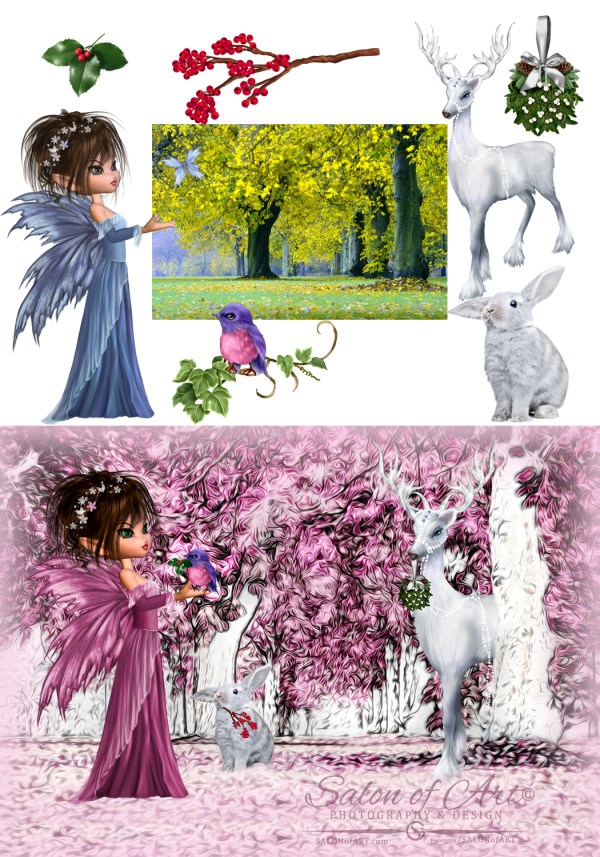
Doreen Erhardt©2015 – August Challenge Example
………………………………………………………………
Entry Deadline: August 26th, 2015 (ending on a Wednesday again this month)
……………………………………………………………….
How to Enter: Post the PID (card number) and the URL (public storefront link – please WAIT for the card to be available in the public marketplace, please DO NOT post a link to your Manage Cards area) as a post in the challenge blog. We’ll forward your entry to the jury.
……………………………………………………………….
Category: Any Category / Any Occasion
……………………………………………………………….
Rules:
- Submission must meet GCU’s Submission Guidelines and be Approved through the usual Review Cycle – Fast Track your submission with this in the Notes to Reviewer: August Design Challenge Submission here is the link to the blog post: (include THIS blog post URL)
- Only ONE card per artist per challenge.
- Submissions must be NEW, no existing designs.
- Your entry must meet the Challenge Requirements and Theme or it will not be included in the challenge.
- Stock Card Creations entries will not be accepted.
……………………………………………………………………
BLIND Judging: We hope each of you enter every month. Entries are submitted anonymously for judging by the GCU Challenge Jury which means that before and during the challenge, judges do not have any way of knowing what artist is beyond each entry. This eliminates any and all concerns with ‘favoritism’. Results will post on the Community Blog – by August 31st. The jury will judge the entries on the following criteria:
- How well the card meets the Challenge Requirements and Theme.
- How well the card speaks to the Category the artist chooses for the card submission.
- Creativity, Execution and Marketability.
……………………………………………………………………
Winners: 1st Place:
- The winning designer’s card and store will be featured on the GCU Public Blog – the blog which customers view and follow.
- As well as featured on the GCU Public Facebook Page – nearly 17,000 followers, now THAT’S exposure!
- The winning card will be Design of the Day following the announcement of the winners (within 48-hours).
EXCEPTION: Horizontal (landscape) cards can not be DOD due to GCU Home Page space restrictions. In these cases, GCU will choose a different vertically oriented card from your store to feature as DOD. Thank you for your understanding and apologies for this limitation.
- The winning card will be added to the Greeting Card Universe Design Challenge Winners Pinterest Board – currently over 800 followers.
- The winning card, should the artist choose, may be referenced in a new series by the winning artist and he/she may Fast Track all cards in the new series (being sure to give the Challenge URL and winning card PID in your Notes to Reviewer for each card in this series).
- Winning card will be included in a marketing email to over 100,000 customers!
2nd Place:
- Your submission will be Design of the Day the following week of announcing the Challenge winners (within 7-days).
EXCEPTION: Horizontal (landscape) cards can not be DOD due to GCU Home Page space restrictions. In these cases, GCU will choose a different vertically oriented card from your store to feature as DOD. Thank you for your understanding and apologies for this limitation.
- Your card will be added to the Greeting Card Universe Design Challenge Winners Pinterest Board.
- Winning card will be included in a marketing email to over 100,000 customers!
………………………………………………………………………
Tips:
Check out these tips, tricks, freebies, and tutorials from our own GCU Community Blog which might be helpful in this month’s Challenge.
Nuts and Bolts: How to Write Greeting Card Verse
Dash of Inspiration: Don’t be a Copy Cat
Nuts and Bolts: The Right Image
……………………………………..and the winners are …………………….
1st place goes to Betsy Bush with PID 1394208

1st Place Winner by Betsy Bush!
2nd Place goes to Julia Bryant with PID 1394442

2nd Place Winner by Julia Bryant
Congratulations! Great entries, everyone!
………………………………………………………………………
Share this:

Nuts and Bolts: Categories

How To Choo-choo-choose the Right Categories
Greeting Card Universe has a dizzying variety of categories including unusual and obscure ones. As a business, this is their strength: the ability to provide cards to fit a customer’s every need. As artists, the category system can be puzzling, confusing and downright frustrating at times. However, don’t tear your hair out. Help is on the way.
The first thing artists need to understand is that GCU’s category system is highly specialized and incredibly specific. Because of this degree of specialization, every greeting card must be designed to fit exactly into its desired category.
This is a difficult concept, I know. No other POD is as stringent. Nobody else seems determined to make you conform. Newcomers especially seem to have a hard time adjusting their thinking. Let me break it down for you as simply as I can: you must categorize a card only by WHAT IT ACTUALLY IS, not what it could be.
For example, you’ve got a beautiful picture of a dewy red rose. You think this image is appropriate for a number of categories like Valentine’s Day and Mother’s Day. You even put “I love you” in a lovely script font on the front. Okay, you’re right – it could fit either category. Problem is, unless the card actually has “Happy Valentine’s Day” or “Happy Mother’s Day” somewhere on it, you cannot put it in those categories. As it stands, if you submit this card as is, you can only put it in Collections >> Flowers & Garden (where there are over 130,000 cards right now).
Repeat after me: WHAT THE CARD ACTUALLY IS, not what it could be.
It sounds counter-intuitive, but it’s actually a very logical system once you wrap your brain around it, and GCU has made category selection even simpler during the card creation process.
Bottom line: think like a shopper, not an artist.
No one is out to stifle your creativity. No one at GCU is deliberately trying to make you cry, I promise. I know the concept can be difficult, and it’s a major reason for card returns. You need to understand that the Reviewers aren’t going to correct categories for you. In rare instances, they might add a second category if you haven’t and it’s appropriate, but do not count on their intervention. It’s YOUR responsibility to get the categories right, and if you don’t…well, you’ll be seeing a lot of those Returned for Edits notifications in your e-mail.
Best advice: don’t try to shoehorn an existing design into a category it doesn’t fit exactly. Seasoned artists know the best way to design cards is to look at the categories first. This can actually help you make future sales – you can find niche or orphan categories that have few or no cards in them, and be able to design cards to fill those categories.
Why should you care about niche and orphan categories? Let’s face it – there are literally thousands and thousands of general birthday cards (over 8000, in fact, as of this writing). Shoppers doing an on-site search or browsing certain categories receive pages and pages of search results. Chances are, if your card isn’t in the first couple of pages, you’ll miss out. Cards in niche and orphan categories don’t have a lot of competition. This is a golden opportunity you shouldn’t miss.
So before you design a card, take a look at the categories list. Just go to the GCU homepage (you’ll see a “Home” link at the top of every page, click the link “Browse Our Entire Selection of Holiday Cards, and you’ll be able to find and click on whatever categories interest you. What makes this list worth your while is that you can instantly how many cards are in each category and sub-category – valuable information for any artist serious about wanting to sell greeting cards.
Sometimes there’s a little confusion when it comes to age- or relationship-specific cards. Let me clarify GCU’s current policy: you should place such cards in the exact category and sub-category that fits it (ie, Happy Mother’s Day to my Birth Mom goes into Holidays >> Mother’s Day >> For Birth Mother) PLUS a collections category if it fits (ie, your Mother’s Day card has a cow on it, so it can also go into Collections >> Animals/Pets >> Farm Animals as the second category.
Now we have to talk about General vs. specific categories. This one can be tricky. Here’s how it works: a general greeting card can be sent to anyone for that occasion (ie, a card that simply says Happy Grandparents Day can be sent to any grandparent, and goes into Holidays >> Grandparents Day >> General Grandparents Day), while a specific greeting card would go into the appropriate sub-category (ie, a card that says Happy Grandparents Day from Your Grandkids goes into Holidays >> Grandparents Day >> From Grandchildren).
A card in either General or a specific category can also go into an appropriate Collections category. However, you cannot put a General card into a specific category. Scratching your head yet? Let’s take my previous example.
The general Happy Grandparents Day card I mentioned… just because a shopper COULD send it as a “missing you” card doesn’t mean you can put it into the Missing You on Grandparents Day subcategory. Only if the card SAYS “missing you”, and then it wouldn’t go into the General category, only into the appropriate subcategory.
Repeat after me again: WHAT THE CARD ACTUALLY IS, not what it could be.
If you grasp this principle, I guarantee you will have less cards returned for edits, and you will save yourself a lot of frustration. Let that be your mantra, and you’ll be all right.
Share this:


Every week, we showcase a GCU category that has few or no cards. We’d like you to create at least one card for this category using the Stock Cards function (Bigstock) or your own graphic designs.
Remember, when you’re submitting your new card, add a little note about the intended category in your Notes to Reviewers – cards submitted for underused categories are much more likely to be approved provided they follow the Submission Guidelines. Be inventive, be clever, be creative. Good luck!
Today’s category with 0 cards is:
Invitations – Baptism/Christening – Non-English/Other Languages
&
Share this:

Dash of Inspiration: Marketing Monday
A Dash of Inspiration, A Cup of Creativity by Doreen Emptyeasel.com has a series called “The ABC’s of Art Marketing” and some of their tips are well worth a read to see how you can apply it to your business as an artist. Today, I wanted to point out a couple of their posts which stood out for me as I glanced through them.
Why Every Aspiring Artist Should Enter Juried Shows by Aletta de Wal
It’s very difficult to grow as an artist if you have never entered a competition with a jury panel of judges. I spent a few years entering “Calls for Art” and Juried Competitions. It offered a tremendous insight in how to judge my own work through a set of eyes that were empowered to see beyond my own pride and emotion. In those years, I won over fifty awards and then went on to curate my own shows in the art gallery I owned. All of this experience were critical steps to my growth as an artist. When I look back at the work which won those awards, it’s primitive in comparison to what I create today, yet I can see the road that brought me here – and along the way I’m able to see that I never stopped growing and improving.
How to Turn Obstacles Into Opportunities for Your Art by Aletta de Wal
Look beyond what you see right now, beyond that which you may not be able to control when it comes to selling your cards, and find opportunities. They’re everywhere. Perhaps you can work in a volunteer capacity with students or seniors to expose them to creativity. If that’s not your thing, look for blogs which you share an interest and offer to write a weekly or monthly post on something you have experience in. The opportunities are endless, you simply need to learn to step beyond your comfort zone and be willing to try something new.
……………………………………………………………………………………
Today is the last day for our July Dash of Inspiration Design Challenge entries – get yours in!
…………………………………………………………………………………….

Image the Unimaginable! Doreen Erhardt©2015
Share this:

Design Spotlight: Laney Tenisci

Today our Design Spotlight falls on Laney Tenisci, a new GCU artist who joined us in April 2015. She’s already got quite a few cute designs in her store and we love them!
_________________________

The idea for this card came to me when I was missing my mum and wishing I could hug her. The little fuzzy fellow is what I imagine a hug would look like if it were a person! I am currently working on two lines of cards. One line, titled “Warm Fuzzies” features cute and fuzzy creatures like the one above; the other line features funky floral designs with a hippie bohemian flair. You can find both lines on GCU! I absolutely love illustrating for greeting cards. I like to think my cards might make someone smile! You can view more of my artwork on my website: www.littlelaneillustration.com
Share this:

Inspiration Station: Christmas Design Trends 2015

It’s the time of year when savvy artists begin thinking about and designing their new Christmas cards. If you need some inspiration, check out these boards on Pinterest which highlight the 2015 trends for the holiday season. You might also want to read this article, The Latest and Hottest Christmas Trends 2015.

Share this:

Tips and Tricks: Handmade Fonts Bundle

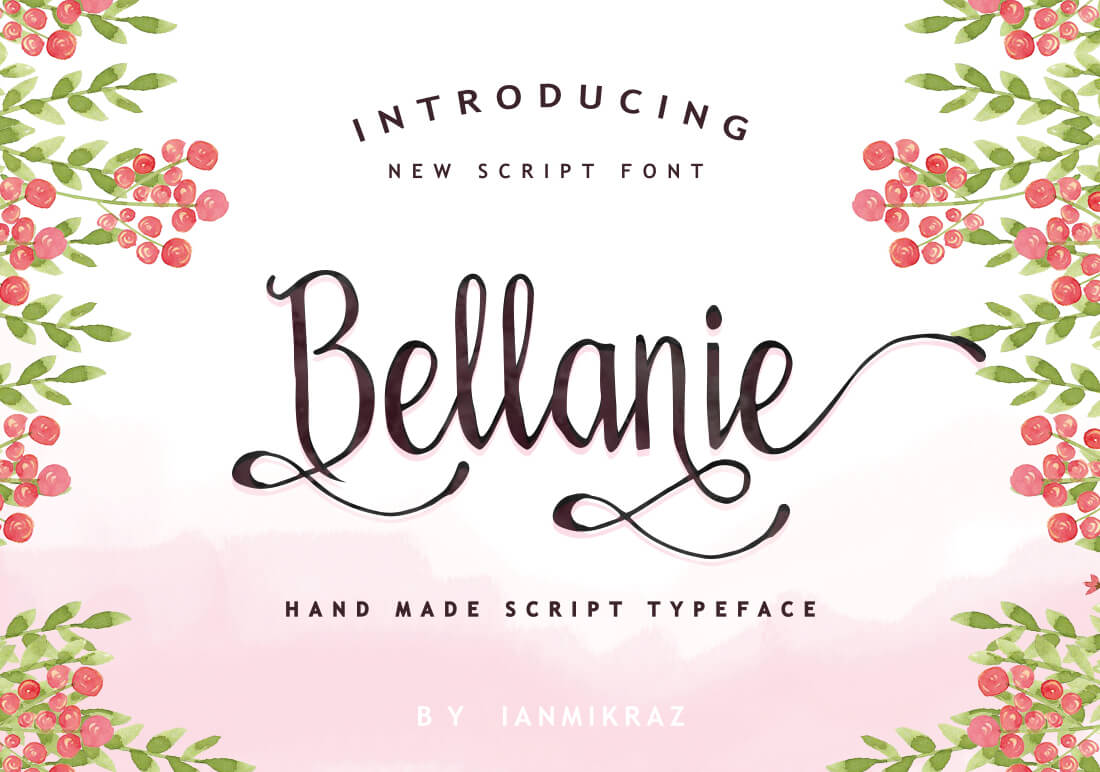
For the next 4 days, Mighty Deals is offering a bundle of 11 handmade fonts for $27. These fonts are trendy and gorgeous, suitable for most card designs and all come with extended license for commercial work. See all the fonts on the linked page. One example below. Please note: most of these are Open Type fonts, the basic alphabets and some of the characters will work fine in Photoshop, but to get the most out of the special characters and glyphs menu, you’ll need Adobe Illustrator or Adobe InDesign. Have fun!
Share this:

Dash of Inspiration: Tutorial Week
I found some really helpful and interesting tutorials this week to pass on. Hopefully you will be inspired to learn something new and that which takes you a new direction in your creative process. ENJOY!
……………………………………………………………………
Spoon Graphics has some interesting tutorials this week:
30 Tutorials to Help You Master Photoshop’s 3D Tools
Video Tutorial: Letterpress & Rubber Stamp Effects
Here are two great tutorials from photographer Jill Wellington
How to Use a Reflector to Light Your Photos
How to Add a New Sky to Photos in Photoshop & PSE

Photo courtesy of Jill Wellington’s Blog Post
……………………………………………………………………
Remember to check out our “Something Old, Something New, Something Borrowed and Something Blue” Dash of Inspiration Design Challenge for July – only 1 week left for submissions!
……………………………………………………………………
So until next week … Learn … Create … Inspire!
Share this:

Every week, we showcase a GCU category that has few or no cards. We’d like you to create at least one card for this category using the Stock Cards function (Bigstock) or your own graphic designs.
Remember, when you’re submitting your new card, add a little note about the intended category in your Notes to Reviewers – cards submitted for underused categories are much more likely to be approved provided they follow the Submission Guidelines. Be inventive, be clever, be creative. Good luck!
Today’s category with few cards in all sub categories is:
Congratulations – Student Leadership Position – General Student Leadership Position
Congratulations – Student Leadership Position – Form Captain
Congratulations – Student Leadership Position – House Captain
Congratulations – Student Leadership Position – School Captain
Congratulations – Student Leadership Position – Sports Captain
Congratulations – Student Leadership Position – Student Body President


